Change Your Stata Interface - For Both Windows and Mac
The Stata interface is made up of five key windows (sometimes called panes):
- The Command window;
- The Results window;
- The History window;
- The Variables window; and
- The Properties window.
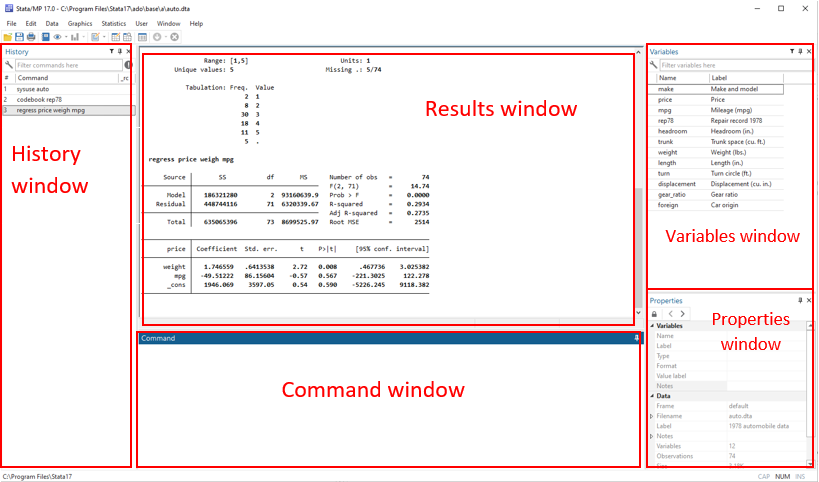
As a Stata user you should be familiar with these windows.
The Command window is where you enter your Stata commands.
The Results window shows you the results of your commands.
The History window keeps a record of all commands Stata has run in this session. This window helps you to review commands. You can simply double click on any commands to re-run it in Stata. Or single click to bring the command back to the Command window.
The Variables window shows all the variables in your current dataset. It includes the variable’s name and label.
The Properties window displays variable and dataset properties. It shows the variable’s name, label, type, format, etc. You can also change your variable’s properties in this window.
For a Windows computer, you can change the interface by clicking and holding the top of the window and dragging it to different areas. You can also close a window by clicking the ‘x’ sign at the top right of the window.
For a Mac computer, the interface has since changed in version 16, and some people cannot find their History window.
A key difference in the Mac interface since version 16 is that the History window does not show up as the default. When you first open Stata, it will look similar to the below:
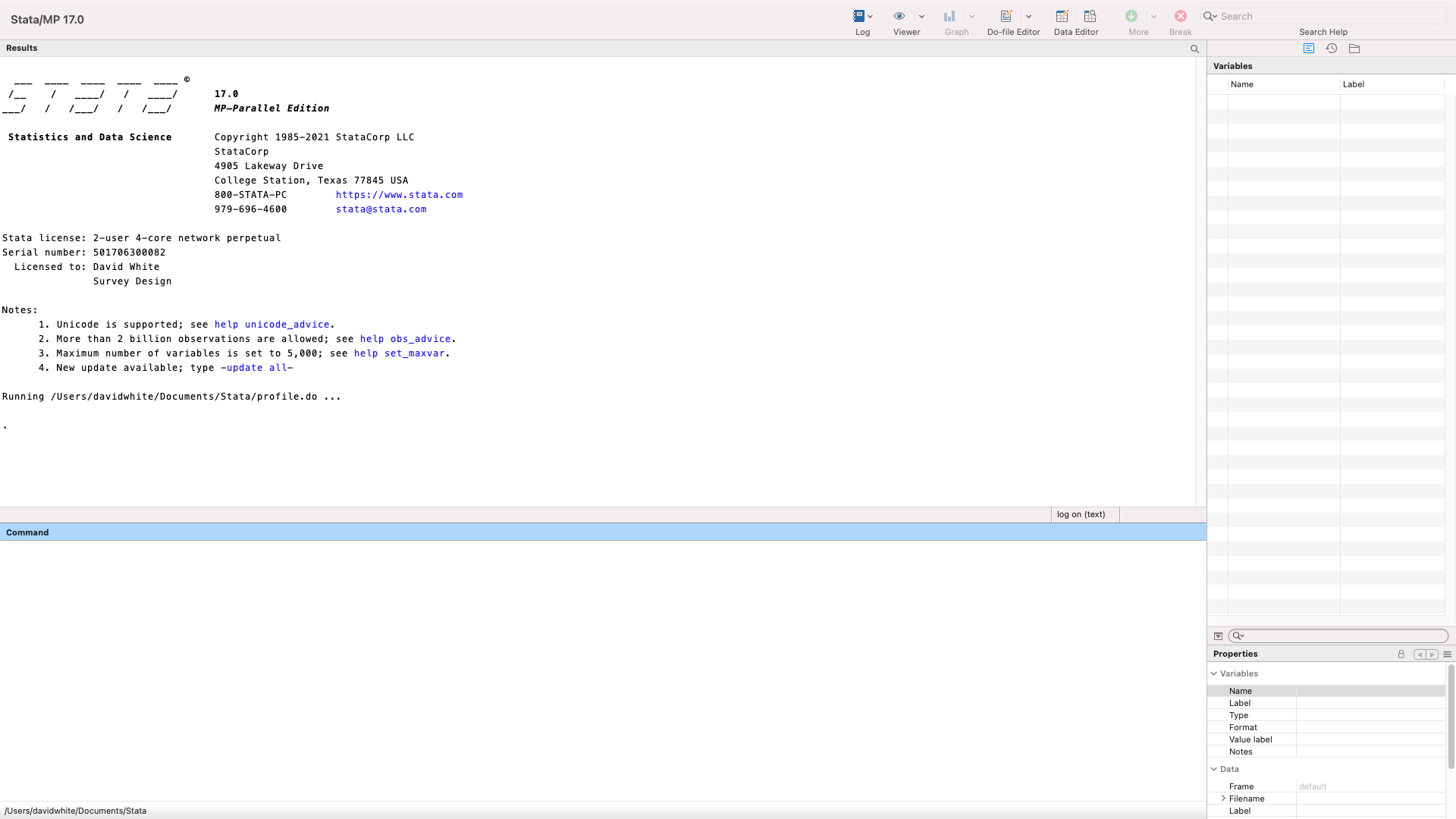
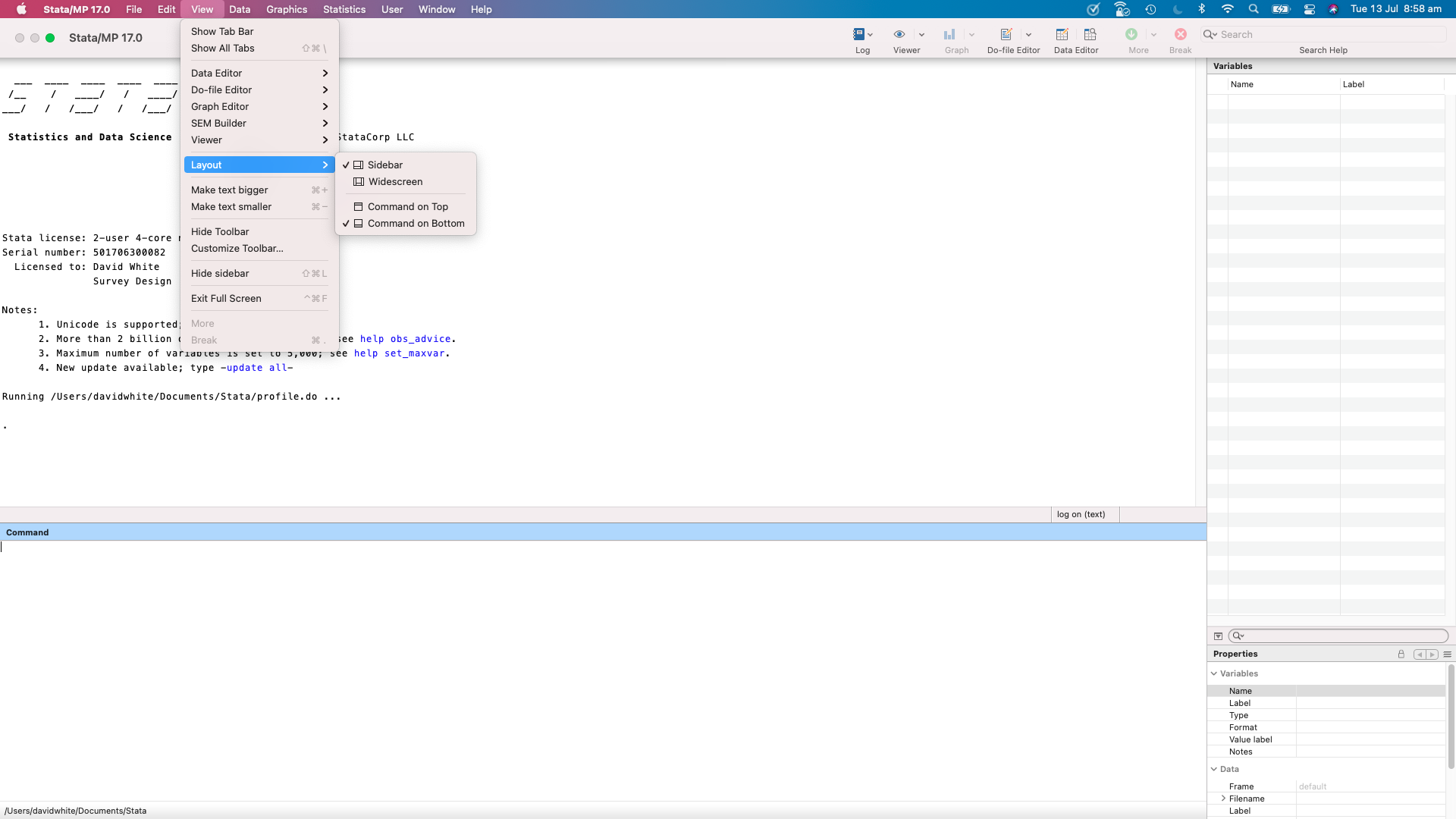
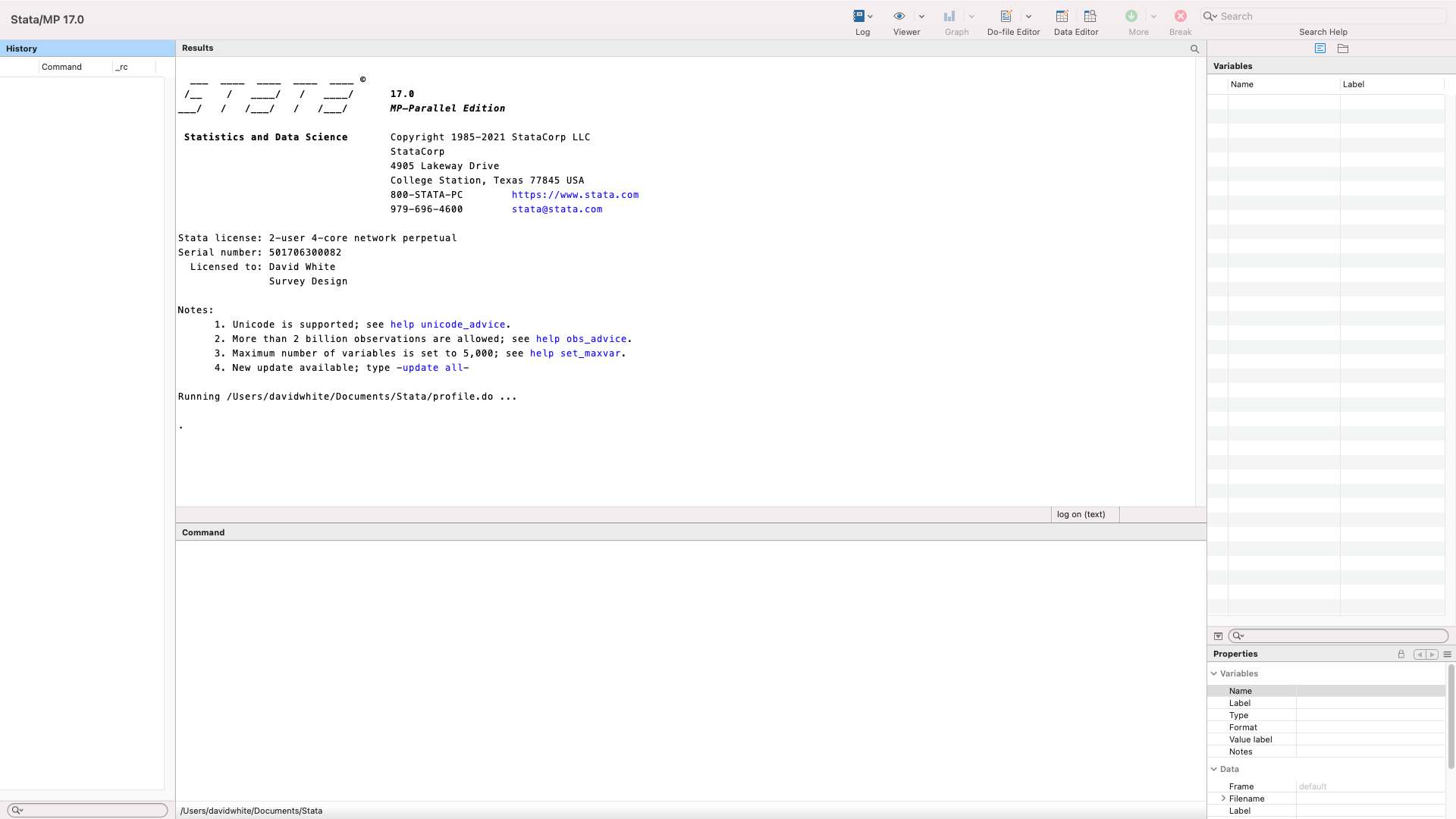
Notice that there is no History window at the left. You can change the layout to make it appear more like the Windows layout by switching to the Widescreen view. To change to Widescreen, go to the View > Layout > Widescreen menu selection in Stata 16 or later versions. The History window will then be present:

If you are still having trouble customising your Stata interface, or if you can’t find your missing windows, you can email us for assistance at tech-support@surveydesign.com.au.