Creating Your Own Stata Menu
Stata’s menu system groups statistical and graphic commands into sections. While these groupings make sense, it can mean that you are moving between a lot of different menus to perform different statistical and graphic commands for your analysis. If you have a set of statistical and graphic commands you use regularly, you can create your own user menu to group these in one place. The commands to create your menu must be placed in your “profile.do” file in your “User” directory (e.g. mine is saved in C:\Users\LauraWhiting). If you do not already have a profile.do in this location you can easily create one in Stata by opening a new do-file and saving it as profile.do in the correct location. A personal user menu means you only ever have to go to one place to perform your analysis.
How to Use:
window menu append item "menu_name" "entry_text" "command"
window menu append submenu "menu_name "sub_menu_name"
window menu refresh
Worked Example:
In this example I use the following commands to create my own submenu under the “User” Stata menu. If I wanted this menu to be there for every Stata session, I would have to save these lines of code within a “profile.do” file in my user directory, located in “Users” on my Windows machine. In the command pane I type the following:
window menu append submenu "stUser" "Laura"
window menu append item "Laura" "Describe" "describe"
window menu append item "Laura" "Summarize" "summarize"
window menu append item "Laura" "Auto Dataset" "sysuse auto, clear"
window menu refresh
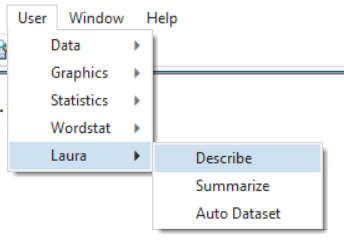
As you can see, I have created a new submenu under “User”. You can add any command you like, and I have specifically added a command to load the Stata example dataset “auto.dta”, so I can now load the dataset through the Stata menu.