Stata Schemes - Setting Your Own Colours
Colour schemes can be very important when you are creating graphics, especially if you are working with a lot of data on the same graph. It is important to be able to easily tell different colours apart, and over time you will likely develop a preference for particular colour combinations. Stata allows you to select any colour you like with many different graph options, but these options need to be re-applied every time you run a new graph.
Here we show you how to set your own default colours, so you don’t have to keep applying your colour options every time you run a new graph. This involves creating your own scheme file and Stata profile do file.
Example:
1. First step is to copy two scheme files, the “scheme-stcolor.scheme” file and the “scheme-s2color.scheme” file. These are located in one of the following directories:
- Windows for Stata 16 and above (where VR is the version number): C:\Program Files\StataVR\ado\base\s
- Windows for Stata 15 and below (where VR is the version number): C:\Program Files (x86)\StataVR\ado\base\s
- Mac OS X: ~/Library/Application Support/Stata/ado/base/s
2. Paste your copied “scheme-s2color.scheme” onto your desktop and rename it “templatescheme.scheme”
3. Paste your copied “scheme-stcolor.scheme” into your personal ado directory, one of the following:
- Windows: C:\ado\personal
- Mac OS X: ~/Library/Application Support/Stata/ado/personal/
4. Rename this scheme file to identify it as your personal scheme, e.g. I renamed my file “scheme-Laura.scheme”. Note: Always start the scheme file name with “scheme-” as this will allow Stata to include it for menu selection.
4. Open your renamed scheme file using either Notepad (Windows) or TextEdit (Mac)
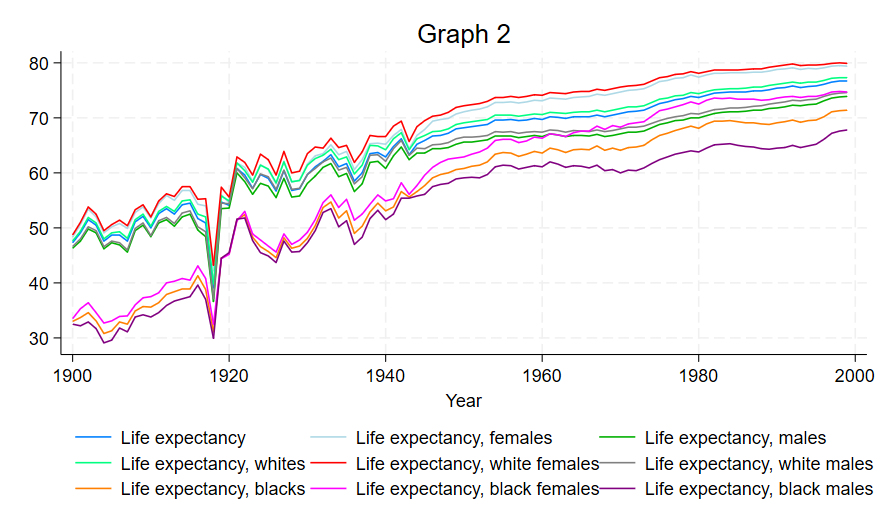
5. You can now edit any of the settings in this file to change the default graph settings. NOTE: If there is a graph setting that you want to change but it isn’t contained in your scheme file, open your “templatescheme.scheme” that you placed on your desktop. This file contains every possible scheme option. Find the option here and copy it into your scheme file. For my scheme file I changed the colours as follows:

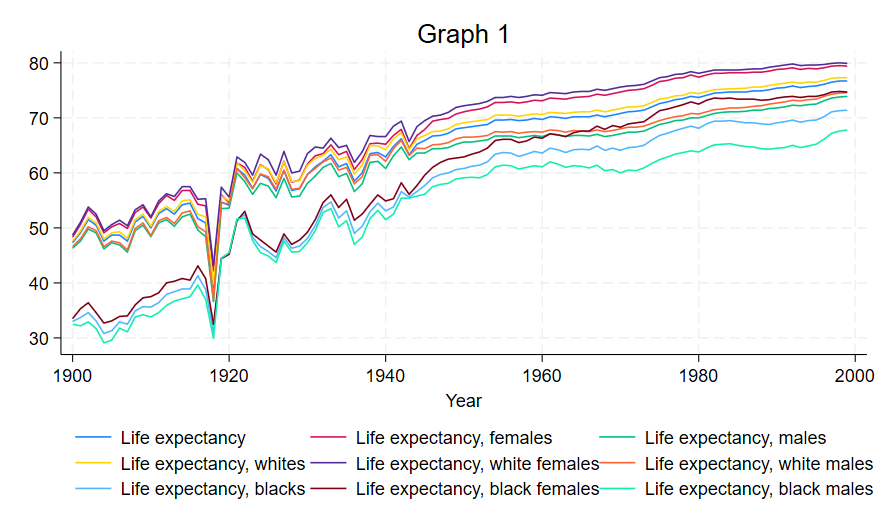
6. This changed my colours from graph 1 to graph 2 (below):
7. Once you have saved the changes to your new scheme file you have to tell Stata to load this file upon startup. To do this you need a profile.do for Stata to load. Open a new text file (with Notepad or TextEdit) and put the following line in it: a. set scheme Laura (replace Laura with your previously saved scheme file name, you only need the word after “scheme-”)
8. Save this file as profile.do, making sure that “All Files” is selected for file type or it will save as a text file instead of a .do file. Save the file to any of the following locations:
Windows:
- C:\Program Files\StataVR or C:\Program Files (x86)\StataVR (If you have administrator privileges)
- C:\Users\UserName (replace UserName with your login name)
Mac:
- ~/Library/Application Support/Stata (You may need administrator privileges)
- ~/Documents/Stata (Your login Documents folder)
9. Close and restart Stata. You should see a prompt that says it is running your do file, for example on my computer after the “Notes” info on startup I see the following: “running C:\Users\Laura\profile.do …
The profile.do should now load every time you start Stata and will set the colour scheme to your new scheme file.