Infographic using Emojis
In this TechTip we introduce several features of Stata’s bar graph. This tip was created on an Apple Macintosh with access to Apple’s Emoji font. You may need to check the availability of Emojis for your operating system. We show the use of relabel, blabel and the nofill option which allows us to control each bar within the categories.
First we will start with Stata’s auto dataset.
clear all
sysuse auto
The auto dataset already separates foreign cars from domestic cars, however, for this graph I want to show a bar graph showing the count of cars produced in each country. To do this we need to know a little bit about the production of the car brands. Given it was 1978, we are going to assume that German branded cars were produced in Germany, French brand cars were produced in France etc. To allow us to create the different bars we need a new variable defining the country of origin. Let’s create a new variable called “country”.
generate byte country = 0
We have used byte because we know we only have a small set of values and this is a minimal data type. Byte can hold values -127 to 100 and it takes up precisely 1 byte. We then need to assign the respective values to the variable country.
replace country = 1 if foreign == 0
replace country = 2 if make == "Peugeot 604" | make == "Renault Le Car"
replace country = 3 if ustrleft(make,4) == "Audi" | ustrleft(make,3) == "BMW" | ustrleft(make,2) == "VW"
replace country = 4 if ustrleft(make,4) == "Fiat"
replace country = 6 if ustrleft(make,3) == "Vol"
replace country = 5 if country == 0
Please note that I ran
replace country = 6 if ustrleft(make,3) == "Vol"
before I ran
replace country = 5 if country == 0
The number 5 in this exercise is allocated to Japan and so for efficiency purposes after all the others were replaced, everything else was Japan.
We are going to use the Apple Emoji font to create value labels to label the country variable. This is done in two steps: Step 1:
label define country_flag 1 "🇺🇸" 2 "🇫🇷" 3 "🇩🇪" 4 "🇮🇹" 5 "🇯🇵" 6 "🇸🇪"
Note: To do this on a Windows computer you may need to choose alternate fonts.
Step 2:
label values country country_flag
We then need to generate a new variable which represents the counts of the cars for each country. We do this using the egen command with the count function and the by option.
egen country_count = count(country), by(country)
Now with our data ready we can create the bar graph. First we will just run the command:
graph bar (max) country_count, over(country)
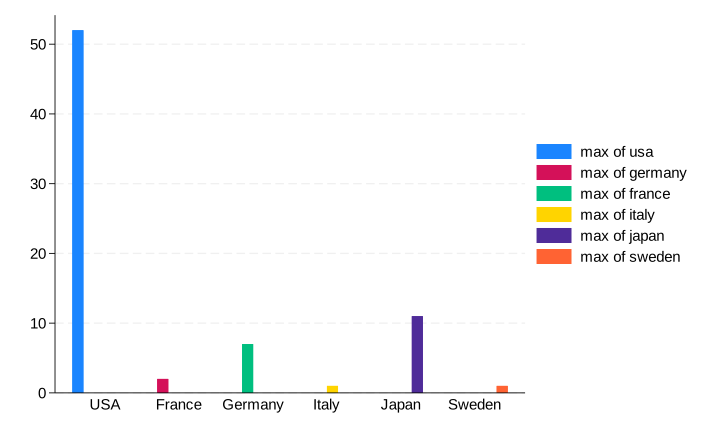
As you will see from this chart the categories are spread out and we see the text name for each country across the x-axis.
I would like to control the bar colour and the bar outline, linking them to the main colours in the country’s flag. I would also like to compress the bars so that they are closer together. Let’s do that, add a title, turn off the legend, and place flags as the labels.
graph bar (max) country_count, /// then we apply options to the main graph
	over(country, /// then we apply options to the "over" option
		label(nolabel) /// this will remove the max_country_count label
		axis(noline) /// this will remove the y axis line
	) /// this is to close the over option
	blabel(total, position(outside)) /// this is to add the total to the top of the bar
	nofill /// this is to compact the bars so that there is no space between the categories
	bar(1, lcolor("#B22234") lwidth(thick) color("#0A3161")) /// this is to define the color and line of bar 1 - using hex codes
	bar(2, lcolor("#000091") lwidth(thick) color("#EF4135")) /// this is to define the color and line of bar 1 - using hex codes
	bar(3, lcolor("#000000") lwidth(thick) color("#DD0000")) /// this is to define the color and line of bar 1 - using hex codes
	bar(4, lcolor("#008C45") lwidth(thick) color("#CD212A")) /// this is to define the color and line of bar 1 - using hex codes
	bar(5, lcolor("#BC002D") lwidth(thick) color("#FFFFFF")) /// this is to define the color and line of bar 1 - using hex codes
	bar(6, lcolor("#004B87") lwidth(thick) color("#FFCD00")) /// this is to define the color and line of bar 1 - using hex codes
	yscale(off) /// this removes the scales from the y axis
	title("US Cars by country of origin for 1978") /// this adds the title
	legend(off) /// this removes the legend
	groupyvars /// this groups our variable by the categories
	showyvars /// this allows us to show the labels for our categories
	yvaroptions(label(labsize(*4))) // this defines the size of our y categories labels (i.e. the flags)

graph save "country_of_origin", replace

Our resulting graph is a nice plot showing the country primary colours and the country flags with the counts for each country.